Tuesday, December 27, 2011

How to Delete cache,Cookies from safari & opera in MAC OS

How to Delete Cookies Using the Safari Web Browser:

Steps 01:

·  Select "Preferences" from the top Safari menu.


Steps 02:

Click the "Security" tab.Then Select "Show Cookies".


Steps 03:


Select "Remove all".  Alternatively if you only wish to delete a select group of cookies, highlight them and select "Remove"


Note: 

Read the confirmation message and click "Remove"then Select "Done".


Another procedure for Clear All Browsing History in Safari :


1)Click on Edit and choose Reset Safari…


2)You then get this confirmation screen where you can decide what to keep and what needs to go.  Keep in mind that once you hit the Reset button there is no turning back.  


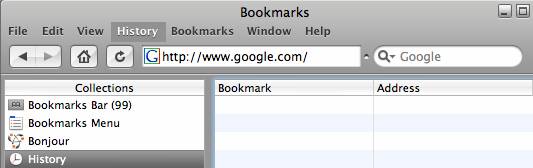
*******A quick way to verify it worked is to check the History.  Looks like all is clear.


Opera on Mac OS X:

From the Tools menu, select Advanced > Cookies. The Cookie Manager dialog box appears.


How to change MAC addresss in MAC OS


For search current MAC address:

ifconfig en0 | grep ether

For change MAC address:
sudo ifconfig en0 ether aa:bb:cc:dd:ee:ff(New MAC)

For Disable LAN:

sudo ifconfig en0 down

For Enable LAN :

sudo ifconfig en0 up

Other procedure:

sudo ifconfig en0 ether 00:00:00:00:00:00 ,where en0 is the network interface you wish to change the MAC address of, and 00:00:00:00:00:00 is the target MAC address. This code cannot be used in Leopard, but it turns out the solution is extremely simple, and just as straightforward. Again in Terminal, just type: sudo ifconfig en0 lladdr 00:00:00:00:00:00


How to Ping & Tracert from MAC Computer

How to Ping on a Mac Computer  

1)Click the Apple menu.Then Click on Finder in the dock.

2)
  • Click on Macintosh HD in the window.
  • Click on Applications.
  • Click on Utilities.


3)Double-click on Network Utility. In the Network Utility window, click on the Ping tab.


Note:
  • In the field under "Please enter the network address to ping," enter yahoo.com to ping Yahoo's domain servers.
  • Click the Ping button.
                                                                           OTHER WISE


1)On the Toolbar, click Go and select Utilities folder from the menu.Double click the Network Utility icon.
 
  
2) Select the Ping tab.


You can also Ping from the Terminal applet.On the Toolbar, click Go and select Utilities folder from the menu.Double click the Terminal icon.


To ping a name address from the Terminal window, do the following:
[Computer:~] user%  =  Enter ping www.address.com 

  
[Computer:~] user%  =  Enter ping address 


On the Toolbar, click Go and select Utilities folder from the menu. Double click the Network Utility icon. Note:  You can also run a trace route from the Terminal applet.
  
Select the Traceroute tab.

Wireless LAN configuration for MAC OS (AirPort Configuration)


1.     Click the Apple menu icon in the top left corner of the screen and select System Preferences.


2.     In the Internet & Network section of the System Preferences window, click on the Network icon.


3.     In the Network window, double-click AirPort.


4. The 12-character alphanumeric combination listed as AirPort ID is the MAC Address.


Another way:

1.     Open your System Preferences and then click on Network.


2.    Set Location to Automatic and set Show to AirPort. If you are unable to select AirPort, select Active Network Ports and make sure AirPort is selected.


3.    Under the TCP/IP tab, next to Configure select Using DHCP.


4.    Under the AirPort tab, in Preferred Network, type NSU as shown below.


TCP/IP Configuration for MAC OS

TCP/IP Configuration for MAC OS
  
1)Setting up a static IP for MAC OS :
Click the Apple icon in the upper left hand corner of your screen, Then click the System Prefreneces.. option.

 
2)In the Internet & Network section click the Network icon. 

 
3) Select the network connection you use to connect to the internet. It will be the one that has a green dot in front of it. The green dot means the connection is active. Then click the Configure button which is close to the bottom of the screen. 

 
4) Select LAN card then click configure options, Then Click the Configure IPv4 drop down box and select the DHCP or Manually option
 
5) Click the Configure IPv4 drop down box and select the Manually option. If you wants to put IP address manually 


Note:
As you can see the Subnet Mask and the Router fields are already filled out. Pick an IP address and enter it into the IP Address box. The IP address you choose should be very similar to the router's IP addres. Only the last number of the IP address should be different. If the router's IP address is 192.168.1.1, I might choose 192.168.1.10. The IP address you choose should end with a number between 1 and 254, and should not be the same as the router's IP address. Every device that connects to your network needs to have it's own IP address. I'm going to recomind some Static IP Addresses for you to use here. Just enter your computer's default gateway and the ip address your computer is currently using into the form below. Then click the Find Static IP Addresses button.
We also need to enter the DNS servers that your computer should connect to. The easiest way to find out what dns servers to use is to give your ISP a call. Ask them what DNS servers you should be using, and they will most likely give you two ip addresses to type into the DNS Servers box on this page. That is all that there is to configuring a static IP address on your Mac.
That's it you should be done! If you can't connect to the internet go back and change your configuration back to what it originally was. Remember that all of the computers on your network need to be setup like this, and every one of them needs to have a different IP address!!!! 

TCP/IP Configuration for MAC OS Another Easy Procedure:  

  
1)Click the Apple icon in the upper left hand corner of your screen ,Then Click System Preferences
  

2) click on Network


3) From the menu select on the Network select the following :
Location = Automatic
Show = Built-in Ethernet


4) Select Manually option for Configure IPv4


5)Now you can enter the static IP address you want to set for this computer. After entering the details click on Apply Now button to save the settings.